Jump to section

Tax Document OCR: How It Works and Where It Breaks
How tax document OCR reads W-2s, 1099s and K-1s, where it gets values wrong, and how small tax firms can review the output fast.
·6 min read·By Abby Melby
Key Takeaways
- Plain OCR turns an image into text. Tax document OCR turns a form into labeled fields, box by box.
- The steps are the same everywhere: upload, identify the form, find the boxes, pull the values, flag what's unsure.
- Most errors come from bad scans, handwritten corrections, consolidated 1099s and the wrong form variant.
- Review the high risk fields first and keep every value linked to its source page.
- OCR speeds up intake. It doesn't replace your tax software or your review.
Tax document OCR reads a client's uploaded tax form, figures out which form it is, finds each box, and turns the values into data you can prep from. Good tax OCR knows Box 1 from Box 2 on a W-2. Basic OCR just hands you a wall of text.
If you've ever typed a stack of W-2s into Drake in February, you already know why firms want this. Here's what's actually happening when a tool "reads" a tax document, and how to tell whether you can trust what comes out.
Plain OCR vs tax form extraction
OCR stands for optical character recognition. On its own, it only turns pixels into characters. That's useful for search, but it doesn't know whether a number on the page is wages or federal withholding.
Tax form extraction adds a layer on top that understands the form itself.
| Plain OCR | Tax document extraction | |
|---|---|---|
| Output | A block of text | Named fields, like W-2 Box 1 or 1099-NEC Box 1 |
| Knows the form type | No | Yes, and tells a 1099-DIV from a 1099-B |
| Handles different layouts | Breaks when the layout shifts | Reads by box label, so payroll provider layouts don't matter |
| Shows where a value came from | No | The better tools link each value back to the page |
| Flags uncertain values | No | Yes, for a person to check |
Older tools needed a template for every form, and those templates broke on state variations, amended forms and slightly shifted scans. Newer tools read by context and box label instead, which is why one setup can handle W-2s from dozens of employers.
How tax document OCR works, step by step
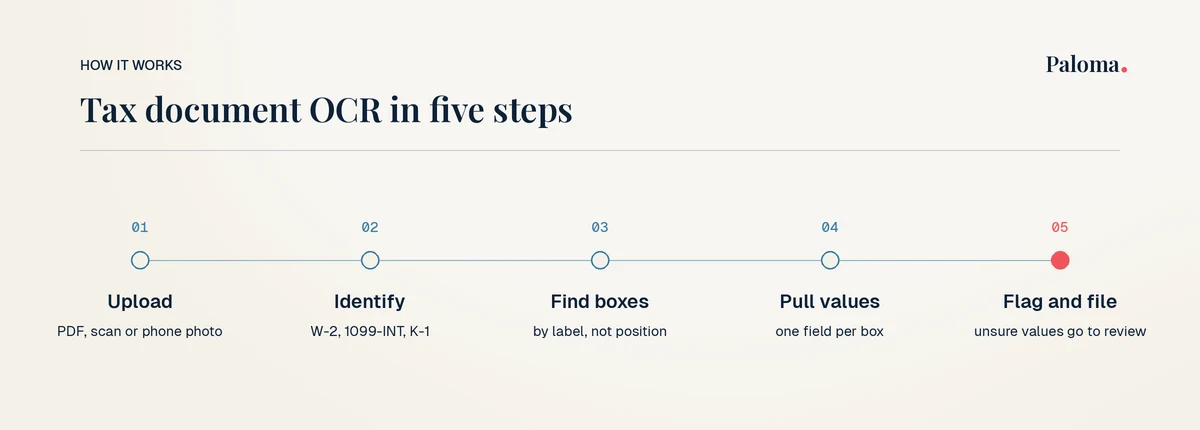
Every tool does some version of these five steps.
- Upload. The client sends a PDF, a scan or a phone photo through a portal or intake form.
- Identify the form. The tool decides what it's looking at: a W-2, a 1099-INT, a K-1, a property tax bill.
- Find the boxes. It locates each labeled box on the page, by label rather than exact pixel position.
- Pull the values. Each box becomes a field with a value, tied to the client and the tax year.
- Flag and file. Values it isn't sure about get flagged for review, and the document gets filed where your team will look for it.
The output then goes somewhere useful: a spreadsheet, an import file for your tax software, or a workpaper your preparer works from.
New firm? Starter Pack, $65/mo
Full platform access for firms in their first two years
Where tax OCR gets things wrong
No tool reads every document perfectly. The failures are predictable, which is good news, because it means you know where to look.
- Bad scans. Crooked, blurry or low resolution images make neighboring boxes harder to tell apart. Clean digital PDFs read best.
- Handwritten corrections. A crossed out number with a new one written in is the hardest thing for OCR to read. Always check these by hand.
- Consolidated 1099s. A brokerage statement can bundle a 1099-INT, DIV, B and MISC in one document. If the tool doesn't split them, values land in the wrong place.
- The wrong variant. If a 1099 gets labeled as the wrong type, every box on it maps wrong.
- Codes and decimals. Similar looking W-2 Box 12 codes and misread decimal points are common small errors.
- Multiple states. W-2s with two state rows need checking that each wage amount stayed with its state.
How to review OCR output without redoing it
The point of OCR is to stop retyping, not to start double typing. A short review routine catches the errors above without redoing the work.
- Confirm the form count matches what the client said they'd send
- Check every form was labeled with the right type, especially 1099 variants
- Verify high risk fields first: SSNs and EINs, W-2 Box 1 and Box 2, 1099-NEC Box 1
- Look at anything the tool flagged as uncertain
- Open any page with handwriting and check it against the image
- Make sure consolidated 1099s were split into separate forms
- Compare big totals to last year's return and ask about large swings
- Keep each value linked to its source page for your workpaper
That last item matters more than it looks. When a value links straight back to the page it came from, checking it takes one click instead of a hunt through a client folder.
Questions to ask before you pick a tool
Vendors love accuracy numbers, and many advertise 99% or better. Those are their own claims, usually on clean forms. Ask instead:
- What gets flagged? You want a tool that tells you when it isn't sure, not one that guesses quietly.
- Can I see where each value came from? If you can't trace a number to the page, review gets slow.
- Which forms does it read? W-2s and common 1099s are table stakes. Ask about K-1s, consolidated brokerage statements and phone photos.
- Where does the data go? Into your workpapers, a spreadsheet, or straight into your tax software?
- How is client data protected? Ask for their security report, like a SOC 2.
- Does it work with my tax software? You shouldn't have to switch software to get better intake.
Book a demo
See client intake and doc collection on your own workflow
Where OCR fits in your intake
OCR is one piece of intake, not the whole thing. It works best when clients upload through one secure place and get reminders until their list is complete. We cover the rest of that setup in our guide to automating tax client intake, including what to keep manual.
This is the part we built Paloma's tax document OCR around. Paloma reads what clients upload, pulls the values out and files each document into categorized folders. Its data overview shows each line item value with a link back to the source document, so your review is a scroll instead of a search, and it all works alongside your tax software, like Drake, instead of replacing it. It's part of the same client intake flow your clients already use to answer questions and upload documents.
Frequently Asked Questions
What is tax document OCR?
It's software that reads tax forms like W-2s, 1099s and K-1s, identifies the form type and pulls each box value into structured data, so your team doesn't retype it.
Is tax OCR accurate enough to skip review?
No. Even good tools misread handwriting, bad scans and bundled forms. Use it to cut typing and keep a quick review on the high risk fields.
Can tax OCR read phone photos?
Many tools can, but a clean, flat, well lit photo or a digital PDF reads much better than a dark or angled one. Ask clients to download the PDF when their employer or bank offers one.
What about consolidated 1099s from brokerages?
Check that your tool splits them into separate forms. If it doesn't, values from the 1099-B can end up mixed in with the 1099-DIV.
Does tax OCR replace my tax software?
No. OCR gets the data out of documents. You still prepare and file the return in your tax software.
Is it safe to upload client tax documents to an OCR tool?
Only to a tool with real security controls. Ask for its security report and how it stores, encrypts and deletes client files.
See it on your own documents
If you want to see what OCR looks like on real client documents, with every value linked back to the page, book a quick Paloma demo. I'd love to show you how it works for your firm.
Try Paloma
Related Articles

Engagement Letter for Tax Preparers: Clauses and Template
The clauses every tax prep engagement letter needs, the mistakes that cause scope creep and fee fights, and a plain language template you can adapt.
Read more →
Do I Need a CPA for My LLC? How to Decide for Your Setup
No law says your LLC needs a CPA. Here's how your LLC is taxed, when filing yourself works, and the moments when paying for help makes sense.
Read more →
How Much Does It Cost to Have Business Taxes Done?
What business tax returns really cost once you add the owner's return, states and books, plus how to get a fixed quote before tax season.
Read more →
Hiring Someone to Do Your Business Taxes: What to Know
Who to hire for your business taxes, what it costs, the IRS red flags, what you'll sign and what to hand over, matched to your type of business.
Read more →Ready to stop chasing client documents?
Paloma collects, sorts and reads your clients’ tax documents so your team can start prep sooner.
Book a demo