Jump to section
How to Automate Tax Client Intake (and What to Keep Manual)
A stage by stage map of what to automate in tax client intake, a reminder schedule with stop rules, and the five things a person should still own.
·8 min read·Updated November 12, 2026·By Abby Melby
Key Takeaways
- Automate by trigger: every time a client does something (or doesn't), something should happen without you.
- Reminders work best on a set schedule with a stop rule, so nobody gets chased forever and nothing stalls quietly.
- Keep five things manual: identity checks for new clients, scope, unusual answers, bank detail changes and the final review.
- Start small. Run one group of returning clients through the new flow before you move everyone.
To automate tax client intake, let software handle the repeat work at each handoff (sending the questionnaire, building each client's document list, reminding, sorting uploads and flagging what's missing) and keep people on the judgment calls: new client identity, scope, odd answers and anything that needs a real conversation.
What "automating intake" actually means
Most guides on this topic are written by software vendors, and they mostly sell the same promise: fewer hours per return. Drake Software's blog says automating client input with intake and online forms "can save an hour of labor for each tax return" (Drake Software). SmartVault says its intake tool can save 60 to 90 minutes per return (CPA Practice Advisor). Those are vendor numbers, so treat them as a ceiling, not a promise.
What none of them give you is the map: which step, what triggers it, and who still owns it. That's what this post is.
Intake has five handoffs where time leaks out of a small firm:
- Getting the right questions to the client
- Turning their answers into a document list
- Chasing what hasn't arrived
- Sorting and naming what did arrive
- Telling you the file is ready to prepare
If you're still working out what to ask, start with our tax client intake form template. This post is about what happens after you hit send.
The intake automation map
Here's the whole flow as triggers. The left column is what happens, the middle is what the system does on its own, and the right is what still needs you.
| Stage | Trigger | What runs on its own | What you still own |
|---|---|---|---|
| Engage | Client signs the engagement letter | Questionnaire goes out with the firm's branding | Deciding scope and price before the letter |
| Questionnaire | Client answers "yes" to a life event | Follow up questions appear, others stay hidden | Reading any answer that looks off |
| Document list | Questionnaire submitted | A checklist built from their answers and last year's return | Adding items only you know about |
| Collection | A checklist item is still missing | Reminder emails on a set schedule | The phone call when the schedule runs out |
| Sorting | Client uploads a file | File is read, named and put in the right folder | Spot checking anything the system wasn't sure about |
| Ready | Every required item is in | File is flagged ready for prep | Final review before you open the tax software |
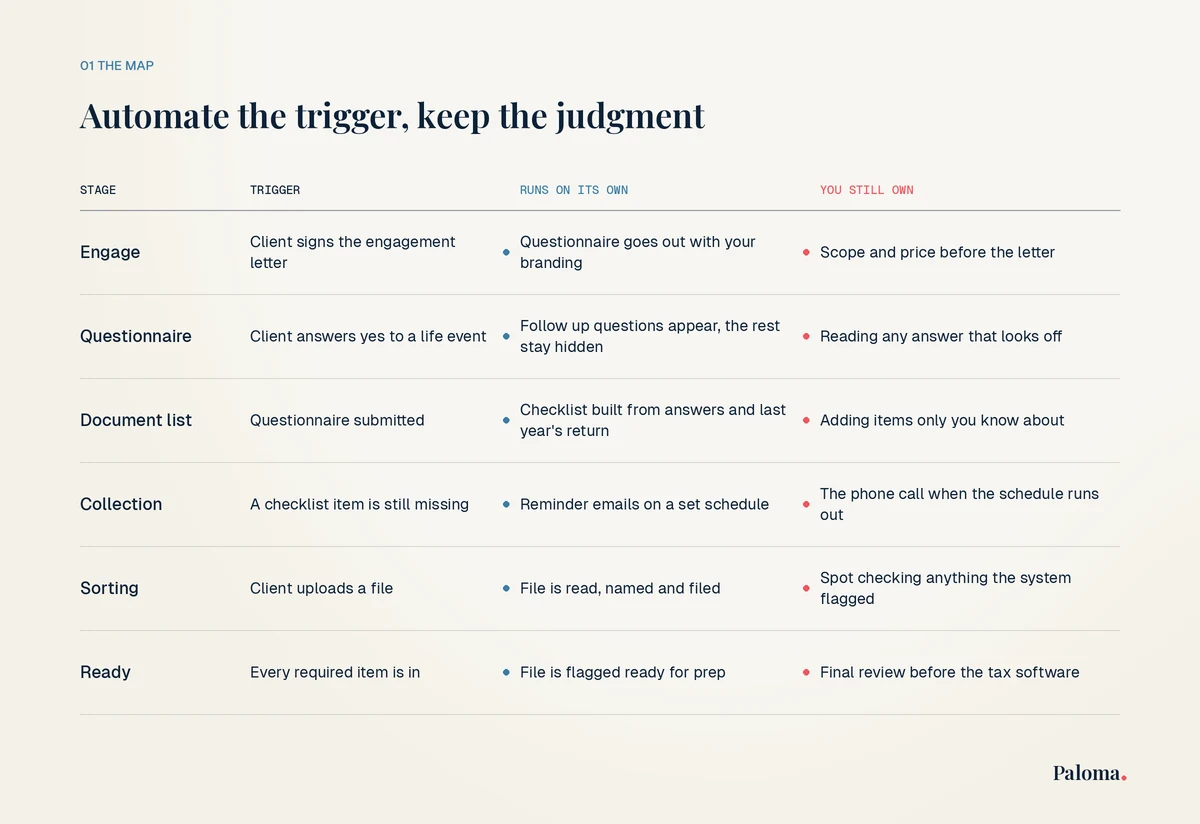
The pattern is the point. If a step has a clear trigger and the same response every time, automate it. If the right response depends on who the client is, keep it.
New firm? Starter Pack, $65/mo
Full platform access for firms in their first two years
Build the document list from the answers
The biggest win is usually the document list. A generic "send us your tax documents" email gets you a shoebox. A list built from the client's own answers gets you the 1099 from the brokerage they mentioned and the childcare statement for the new baby.
Two things make this work:
- Branching questions. Ask yes or no first, then follow up only on the yeses. Enterprise DNA suggests a branched questionnaire of "five to eight questions, not forty" (Enterprise DNA).
- Last year's return. For returning clients, last year's forms are the best checklist you have. If they had a 1099-INT from the same bank last year, it should be on this year's list before they answer a single question.
Our post on the electronic tax organizer covers how the questionnaire side works if you're moving off paper.
Set a reminder schedule with a stop rule
This is where most firms either automate too little (they chase by hand at 9pm) or too much (the client gets 14 emails and stops opening them). Only one of the top guides gives real timing: Enterprise DNA describes a reminder on day seven and an escalation to the team after two weeks without a response.
Here's a schedule I'd start with for a small firm. Adjust it to your clients.
| Day after the request | What happens | Sent by |
|---|---|---|
| 0 | Request with the client's own checklist | Automatic |
| 5 | Friendly reminder listing only what's still missing | Automatic |
| 12 | Second reminder with a direct upload link | Automatic |
| 19 | Last automatic reminder that names the filing deadline | Automatic |
| 21 | Phone call or text from a person | You or your team |
| 28 | File flagged as stalled, extension conversation | You |
Three rules keep it from going wrong:
- Stop the moment it's done. Each reminder should only list what's still missing, and stop when the checklist is complete.
- Send from your firm. Reminders that come from your own name and email get opened. Automated reminders should look like they came from you.
- Hand off to a human on purpose. Three automated reminders is plenty. After that, an email is easy to ignore and a call usually isn't.
Let documents sort themselves
Once files start arriving, the busywork is renaming "IMG_4412.jpg" and figuring out which 1099 it is. Modern intake tools can read the document, pull the values and file it in the right folder. That's the job of tax document OCR.
Keep a person in the loop for anything the system flags as unsure, like a blurry photo or a form it doesn't recognize. A quick spot check here is much cheaper than finding the wrong number at review.
Book a demo
See client intake and doc collection on your own workflow
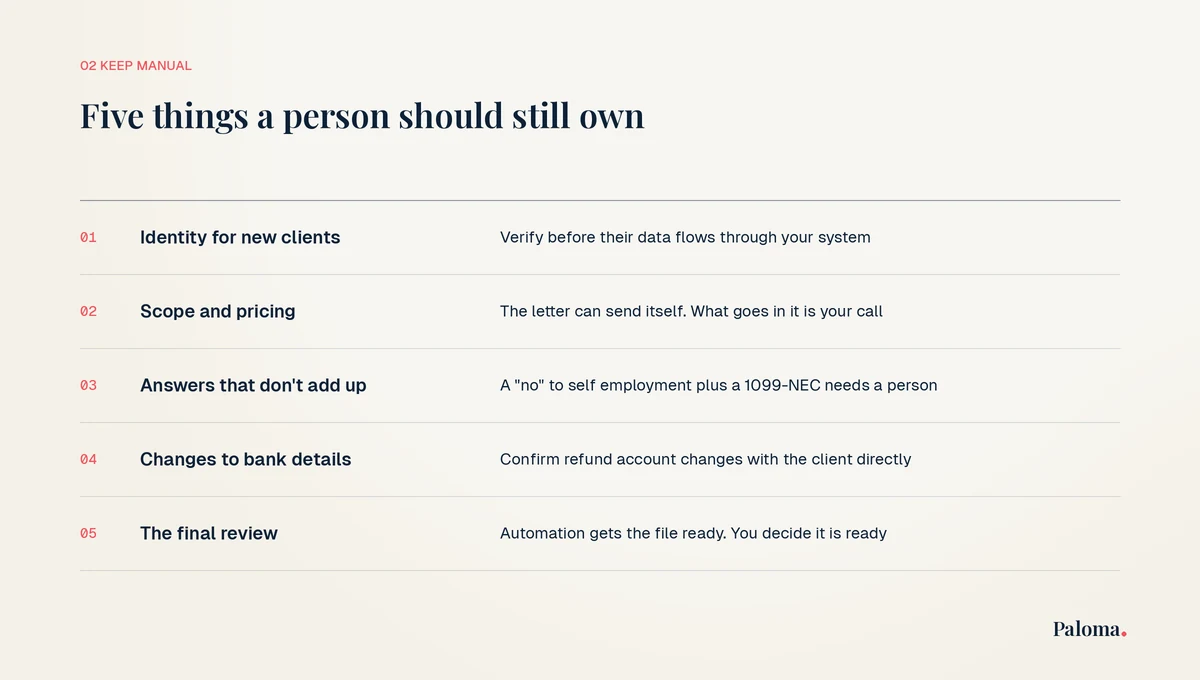
Five things you should not automate
This is the part the vendor guides skip. Drake's post is the only one with a clear limit: it suggests limiting automated online intake to "clients of prior standing or those whose identity has otherwise been validated in person," because of identity theft risk.
Here's the full list I'd keep manual:
- Identity for new clients. Verify a new client before their data flows through your system. Returning clients can go straight into the automated flow.
- Scope and pricing. The engagement letter can be sent automatically. What goes in it should be your call.
- Answers that don't add up. A client who says "no" to self employment but uploads a 1099-NEC needs a human question, not another form.
- Changes to bank details. If a client changes where their refund goes, confirm it with them directly. That's a classic fraud move.
- The final review. Automation gets the file ready. You decide it's actually ready.
Do the time math for your own firm
Here's a hypothetical example. Say you prepare 150 individual returns, and Drake's estimate of an hour saved per return is half right for you. That's 30 minutes times 150 returns, or 75 hours back in one season. At even 40 hours a week, that's almost two full weeks of tax season you don't spend chasing documents.
To run it for your firm, multiply three numbers:
- Your number of returns
- The minutes you spend per return on chasing, sorting and renaming (time yourself on five returns)
- The share of that you think software can take off your plate (be conservative and start at half)
If the answer is under 20 hours a season, a simple form tool and a reminder schedule may be all you need. If it's over 50, it's worth looking at real client intake software.
Roll it out in one week
You don't need a big project. Here's a one week plan for a small firm before January:
- Day 1: Write down your current intake steps, start to finish, and time five returns.
- Day 2: Update your questionnaire with yes or no branching.
- Day 3: Set up document lists and the reminder schedule above.
- Day 4: Write your stop rules and the "do not automate" list for your team.
- Day 5: Pick 10 to 20 returning clients you know well and send them the new flow. Enterprise DNA suggests a pilot group of 20 clients run alongside the old process.
- Week 2 onward: Fix what confused people, then move everyone over.
For a deeper look at choosing the portal itself, our client portal guide for small tax firms has a vendor question checklist.
Frequently Asked Questions
What parts of tax client intake can be automated?
Sending the questionnaire, building each client's document list, reminders for missing items, reading and sorting uploads, and flagging when a file is ready for prep. Judgment calls like scope, identity and odd answers should stay with a person.
How much time does automating intake save?
Vendors claim anywhere from about an hour per return (Drake) to 60 to 90 minutes (SmartVault). Your number depends on how much time you spend chasing and sorting now, so time five returns before you decide.
Should new clients go through automated intake?
Yes, but verify who they are first. Drake recommends limiting automated online intake to returning clients or clients whose identity you've already confirmed, because of identity theft risk.
How many reminders should a client get?
Three automated reminders spread over about three weeks is a good start, each listing only what's still missing. After that, call. More emails rarely work better than one phone call.
Can I automate intake without changing my tax software?
Yes. Intake tools sit in front of your tax software. They collect and organize what you need, and you still prepare the return in the software you already use.
What size firm needs intake automation?
Any firm that spends real hours chasing documents. Run the time math above. If automation would save you more than a couple of weeks a season, it's worth setting up before January.
If you'd like to see this flow running with real reminders and document lists, book a Paloma demo and I'll walk you through it with your own intake steps. It works alongside the tax software you already use.
Try Paloma
Related Articles
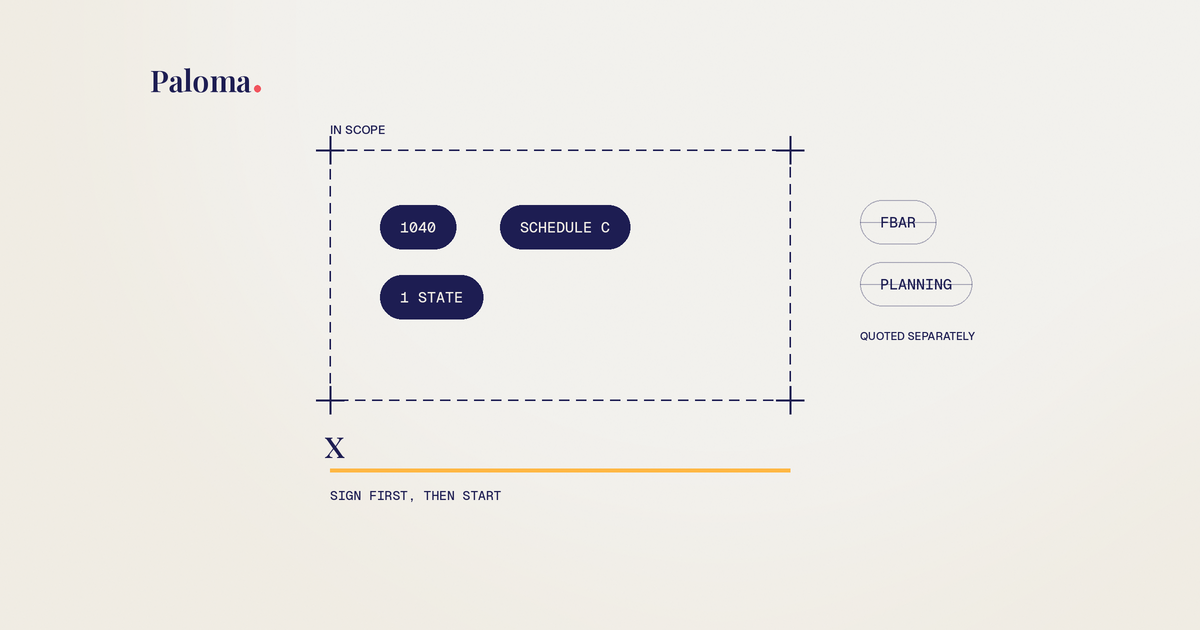
Engagement Letter for Tax Preparers: Clauses and Template
The clauses every tax prep engagement letter needs, the mistakes that cause scope creep and fee fights, and a plain language template you can adapt.
Read more →
Do I Need a CPA for My LLC? How to Decide for Your Setup
No law says your LLC needs a CPA. Here's how your LLC is taxed, when filing yourself works, and the moments when paying for help makes sense.
Read more →
Tax Document OCR: How It Works and Where It Breaks
How tax document OCR reads W-2s, 1099s and K-1s, where it gets values wrong, and how small tax firms can review the output fast.
Read more →
How Much Does It Cost to Have Business Taxes Done?
What business tax returns really cost once you add the owner's return, states and books, plus how to get a fixed quote before tax season.
Read more →Ready to stop chasing client documents?
Paloma collects, sorts and reads your clients’ tax documents so your team can start prep sooner.
Book a demo