Jump to section
Electronic Tax Organizer: How It Works and How to Switch
What an electronic tax organizer is, how it differs from a PDF, what to look for in one, and a simple plan to move your clients over before tax season.
·7 min read·Updated November 12, 2026·By Abby Melby
Key Takeaways
- An electronic organizer collects answers and documents together, so you stop matching attachments to emails.
- The real win is conditional questions. Clients only see what applies to them, which is why they actually finish.
- When you compare tools, check the client side first: phone uploads, save and come back later, and no hard login steps.
- Plan the switch now. A short heads up email in December and organizer links in January works well for most small firms.
An electronic tax organizer is an online version of the questionnaire and document checklist you send clients before tax season. Clients answer on their phone or computer, upload documents in the same place, and you get everything back organized instead of scattered across email.
Electronic vs paper tax organizers
Paper organizers still work for some clients. But a long PDF asks every client every question, whether they have a rental or not. People skim, skip pages, and send back half of it with a few photos of their W-2.
An electronic organizer fixes most of that by changing three things.
It asks only what applies. If a client says they didn't start a business this year, the self employment questions disappear. A W-2 only client gets a short organizer. Short organizers get finished.
Documents live next to answers. When a client says they had a 1099-R, the upload spot for it is right there. You don't have to remember who sent what in which email thread.
You can see progress. Instead of waiting and wondering, you can see who has started, who's done, and what's still missing.
Some firms still offer paper on request, and that's a good idea. One CPA firm's organizer page, for example, sends clients to its portal for the online organizer and says clients can contact their local office for a paper one or still drop off or mail documents. Making electronic the default and paper the exception keeps everyone happy.
How an electronic tax organizer works
Most tools follow the same basic flow, even if the screens look different.
- You set it up. Pick your questions and sections, or start from the tool's template. Many tools tailor each client's organizer using last year's return. StanfordTax, for example, says every organizer is tailored using prior year data and skips irrelevant categories.
- You send a link. Usually a secure link by email. Some tools ask clients to log into a portal, others use a unique link with no username or password.
- The client answers and uploads. Good tools let clients snap photos of documents with their phone, save their progress and come back when the next form arrives.
- Reminders go out. Automated reminders nudge clients about what's still missing, so you're not chasing everyone by hand.
- You review. Answers and documents come back sorted, and you move on to prep in your tax software.
One thing to know: an electronic organizer doesn't replace your tax software. It's the front end that gets you clean information before you open the return.
New firm? Starter Pack, $65/mo
Full platform access for firms in their first two years
What to look for in an electronic organizer
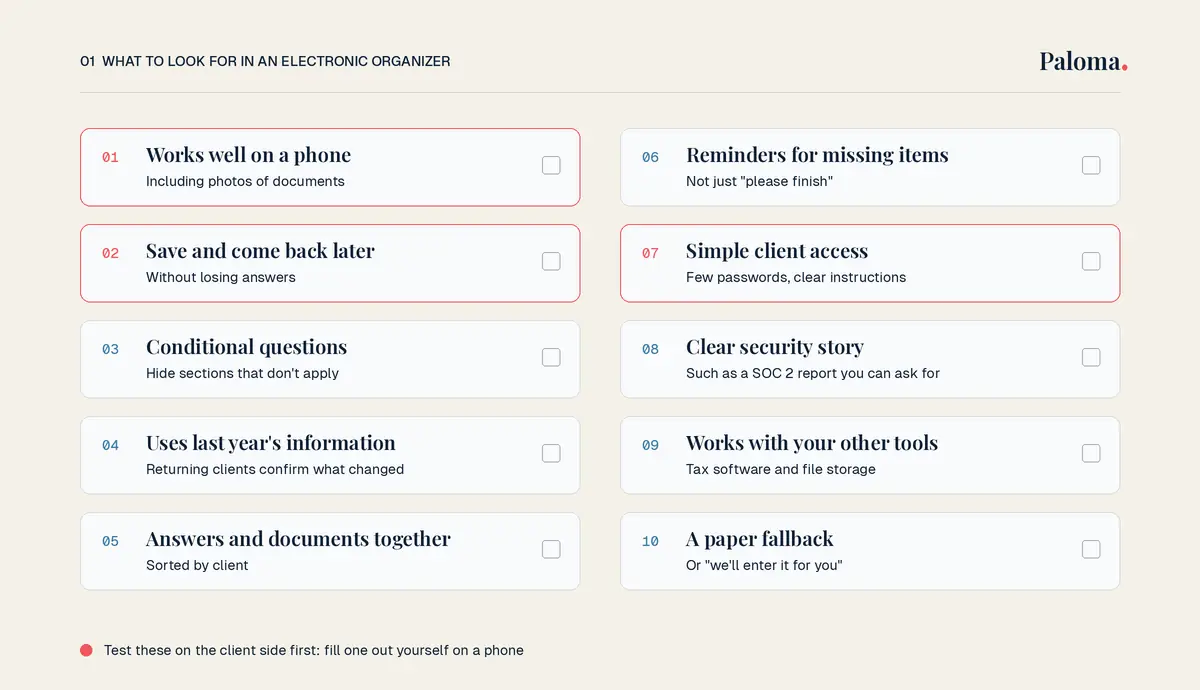
Every vendor page will tell you their tool is easy. The best test is to fill one out yourself on your phone, as if you were a client. Here's the checklist I'd use.
- Works well on a phone, including taking photos of documents
- Clients can save and come back later without losing answers
- Conditional questions that hide sections that don't apply
- Uses last year's information so returning clients only confirm what changed
- Documents and answers arrive together, sorted by client
- Automated reminders for missing items, not just "please finish"
- Simple access for clients (few passwords, clear instructions)
- Clear security story, such as a SOC 2 report you can ask for
- Works alongside your tax software and your file storage
- A paper or "we'll enter it for you" option for the few who need it
Pay extra attention to the login step. Every extra password or code is a place where a client gives up. Some tools use a code sent by email that expires after a few minutes, which is secure but can trip up clients who check email slowly. Try it yourself before you choose.
Also ask how files are handled. Some organizers have upload limits. The Thomson Reuters NetClient CS organizer, for example, lets clients attach up to 50 files of up to 10 MB each. That's plenty for most clients, but it's worth knowing before a client with a big brokerage statement hits the limit.
If security is a big part of your decision, our guide to secure file sharing for accountants covers what to look for in more detail.
Questions to add before 2026 returns
Most organizers I read when researching this post don't ask about two things that will matter this season.
Payment app and marketplace income. According to the IRS, in 2027 taxpayers who earned over $20,000 from more than 200 transactions through online marketplaces or payment apps in 2026 will receive a Form 1099-K. Plenty of clients won't hit that line, and the IRS says the income is still taxable whether or not a form is received. So ask directly: "Did you sell anything or get paid through an app this year?"
Digital assets. The IRS says that if a client sold or disposed of a digital asset using a broker in 2026, that broker will send them and the IRS a Form 1099-DA. Every return also has a yes or no digital asset question. Put that question in your organizer so the answer comes from the client.
While you're at it, ask for IRS letters, including the CP01A notice for a new Identity Protection PIN. The IRS lists it on its own checklist of records to gather, and you'll need the current PIN to file.
A simple plan to move clients over
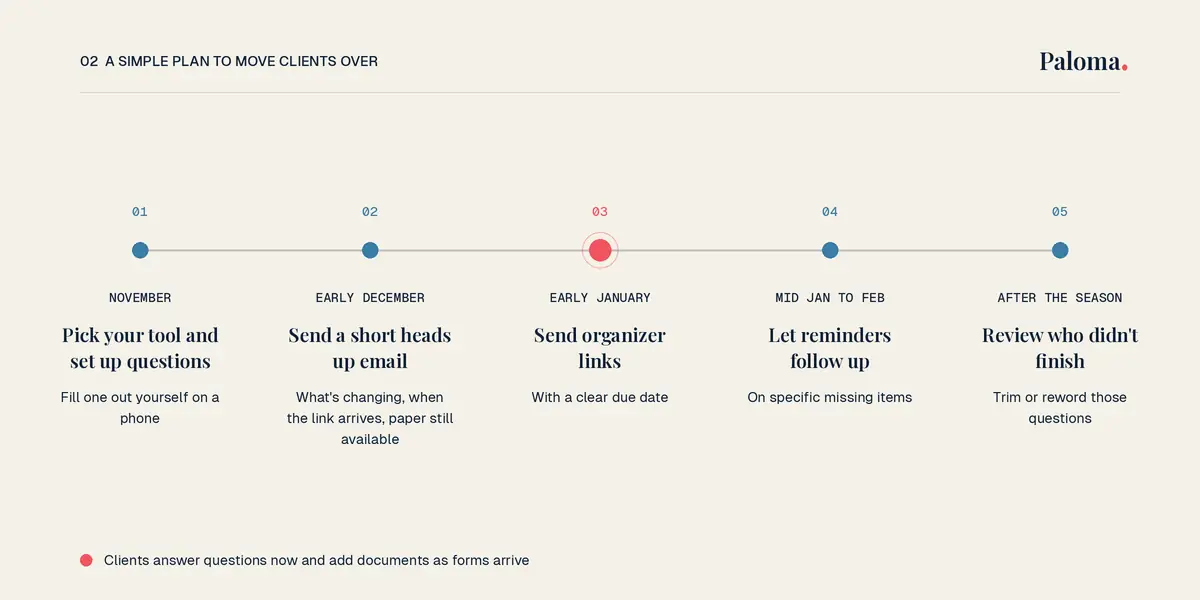
Switching organizers is mostly a communication project. Here's a timeline that works for a small firm. Adjust the dates to your own season.
| When | What to do | Why |
|---|---|---|
| November | Pick your tool, set up your questions, and fill one out yourself on a phone | You'll find the confusing parts before clients do |
| Early December | Send a short heads up email: what's changing, when the link will arrive, and that paper is still available | Clients trust a link they were expecting |
| Early January | Send organizer links, with a clear due date | Clients can answer questions now and add documents as forms arrive |
| Mid January to February | Let automated reminders follow up on specific missing items | "We still need your 1099-R" is easier to act on than "please finish" |
| After the season | Look at who didn't finish and why, then trim or reword those questions | Next year's organizer gets shorter and better |
A few things make the switch smoother:
Keep the heads up email short. Three or four sentences. Tell them what to expect and who to call with questions.
Start with your easiest clients. If you're nervous, send the first batch to clients you know are comfortable online. You'll learn a lot from a small group.
Offer help, not pressure. For the client who really doesn't want to do it online, enter their answers for them or take paper. It's one or two clients, not your whole list.
The organizer is the first step of your whole season, so it's worth getting right. We walked through what happens after it in building a repeatable tax workflow from intake to filing, and our client portal guide for small tax firms covers the place clients will upload everything.
Book a demo
See client intake and doc collection on your own workflow
Frequently Asked Questions
What is an electronic tax organizer?
It's an online questionnaire and document checklist a tax preparer sends to clients before preparing their return. Clients answer questions and upload documents in one place, on a phone or computer.
Is an electronic tax organizer better than a PDF?
For most clients, yes. It can skip questions that don't apply, keeps documents with answers, and lets you see progress. Some clients still prefer paper, so it's fine to offer both.
Can clients fill out an electronic tax organizer on their phone?
With most modern tools, yes, including taking photos of documents. Test it yourself on a phone before you send it to clients.
Does an electronic tax organizer replace my tax software?
No. It collects information before you prepare the return. You still prepare and file in your tax software.
When should I send electronic organizers to clients?
Early January works well, with a heads up email in December. Clients can answer the questions before their forms arrive, then upload documents as they come in.
What if a client won't use the electronic organizer?
Offer a paper copy or a quick call where you enter the answers for them. Keeping a paper option makes it easier to make electronic the default for everyone else.
If you'd like to see how AI intake forms, document collection and automated reminders can work together for a small firm, take a look at Paloma's tax organizer or request a Paloma demo. I'd be happy to walk you through it and see if it's a good fit.
Try Paloma
Related Articles
Engagement Letter for Tax Preparers: Clauses and Template
The clauses every tax prep engagement letter needs, the mistakes that cause scope creep and fee fights, and a plain language template you can adapt.
Read more →
Do I Need a CPA for My LLC? How to Decide for Your Setup
No law says your LLC needs a CPA. Here's how your LLC is taxed, when filing yourself works, and the moments when paying for help makes sense.
Read more →
Tax Document OCR: How It Works and Where It Breaks
How tax document OCR reads W-2s, 1099s and K-1s, where it gets values wrong, and how small tax firms can review the output fast.
Read more →
How Much Does It Cost to Have Business Taxes Done?
What business tax returns really cost once you add the owner's return, states and books, plus how to get a fixed quote before tax season.
Read more →Ready to stop chasing client documents?
Paloma collects, sorts and reads your clients’ tax documents so your team can start prep sooner.
Book a demo